
 By
By 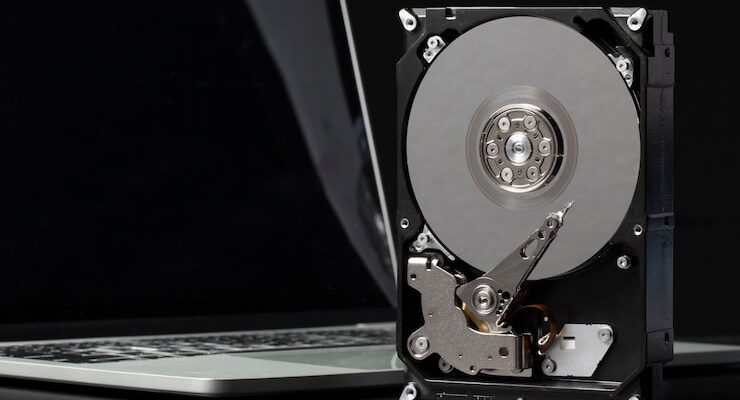
Data loss can be one of the most frustrating experiences for any Mac user. Whether it’s due to a hardware failure, software corruption, or accidental deletion, losing your important files can feel like a nightmare. Fortunately, Mac data recovery doesn’t have to be overwhelming. With the right approach and trusted services like Five Star Data Recovery, getting your files back can be simple and stress-free.
In this blog, we’ll break down everything you need to know about Mac hard drive recovery, including common causes of data loss, recovery options, and steps to take when your Mac hard drive fails.
Understanding Mac Hard Drive Failure
Before diving into recovery methods, it’s helpful to understand the root causes of Mac hard drive failure. These can typically be divided into two main categories:
-
Logical Failures
These issues are software-related and often include:
- File system corruption
- Accidental file deletion
- Partition errors
- Virus or malware attacks
-
Physical Failures
Physical failures involve damage to the hardware itself, such as:
- A crashed or spinning hard drive
- Water or heat damage
- Head crash
- Mechanical wear and tear
Identifying whether your issue is logical or physical will help determine the best course of action.
Signs of a Failing Mac Hard Drive
Recognizing the early signs of a failing hard drive can improve your chances of successful recovery. Look out for:
- Frequent crashes or freezes
- Slow performance
- Clicking or grinding noises from the drive
- Mac failing to boot or showing a folder with a question mark
- Disappearing files or inaccessible folders
If you notice any of these symptoms, it’s important to stop using the drive immediately to prevent further data loss.

First Steps After a Mac Hard Drive Fails
Time is critical when dealing with a hard drive failure. Here are the immediate steps you should take:
-
Stop Using the Drive
Continuing to use a failing drive can overwrite your data, making recovery more difficult. Unplug it or power down the system if needed.
-
Check Disk Utility
macOS has a built-in Disk Utility tool that can help diagnose and sometimes repair minor issues. You can access it by restarting your Mac in Recovery Mode and choosing “Disk Utility” from the Utilities menu.
-
Use Time Machine (If Enabled)
If you’ve been using Time Machine, this is a good time to check your backup and restore files from there.
-
Contact a Professional Recovery Service
If Disk Utility doesn’t fix the issue and no backup is available, it’s best to consult a professional Mac data recovery expert like Five Star Data Recovery. They specialize in both logical and physical recoveries and have the tools needed to safely extract data from damaged drives.
Mac Data Recovery Options
Depending on the nature and severity of the problem, there are a few different recovery methods available:
-
Software-Based Recovery
For logical issues such as accidental deletion or formatting, data recovery software can often retrieve lost files. These programs scan your drive and attempt to rebuild the lost data.
However, software-based solutions aren’t always effective for physical damage, and improper use can worsen the problem. Be cautious and follow instructions carefully.
-
Professional Recovery Services
If you’re dealing with a physically damaged drive, DIY tools won’t help. This is where professionals like Five Star Data Recovery come in. Their cleanroom environments and specialized equipment allow for safe recovery of data from severely damaged Mac hard drives.
Advantages of professional services include:
- Higher success rates
- Safe handling of sensitive or critical data
- Support for various Mac file systems (APFS, HFS+, etc.)
What to Expect from a Professional Recovery Process
Here’s a basic outline of how professional Mac hard drive recovery works:
- Evaluation – Experts assess the extent of the damage and give you a quote and expected success rate.
- Diagnosis – The drive is carefully examined in a controlled environment.
- Recovery – Using specialized tools, they extract recoverable data from the drive.
- Verification – Recovered data is checked for integrity.
- Delivery – Your files are returned to you on a new storage device or uploaded securely.
Turnaround times vary depending on the damage, but many services offer expedited options if you’re in a hurry.
Tips to Prevent Future Data Loss
Once you’ve recovered your data, it’s time to take preventive measures to avoid future problems. Here are a few simple tips:
- Regular Backups: Use Time Machine or a cloud backup solution to keep regular copies of your data.
- Monitor Your Drive: Use disk monitoring tools to keep an eye on your hard drive’s health.
- Handle With Care: Avoid moving your Mac while the hard drive is running.
- Update macOS: Keeping your system updated reduces software-related crashes or bugs.
When to Call Five Star Data Recovery
If you’re unsure what caused the failure or if DIY attempts have failed, don’t risk permanent data loss. Contact a trusted expert like Five Star Data Recovery. They offer:
- Free diagnostics
- High success rates
- Certified cleanroom environments
- Support for all Mac models and drives
Choosing the right recovery partner makes all the difference when your data is on the line.
Conclusion: Trust the Experts for Stress-Free Mac Data Recovery
Mac data loss doesn’t have to mean disaster. Whether you’re facing a simple accidental deletion or a serious drive failure, options are available. Start by assessing the damage and take prompt action. For more severe cases, don’t hesitate to seek help from professionals like Five Star Data Recovery, who have the experience and tools to safely bring your data back.
With the right knowledge and support, Mac data recovery truly can be made easy.














Comments